
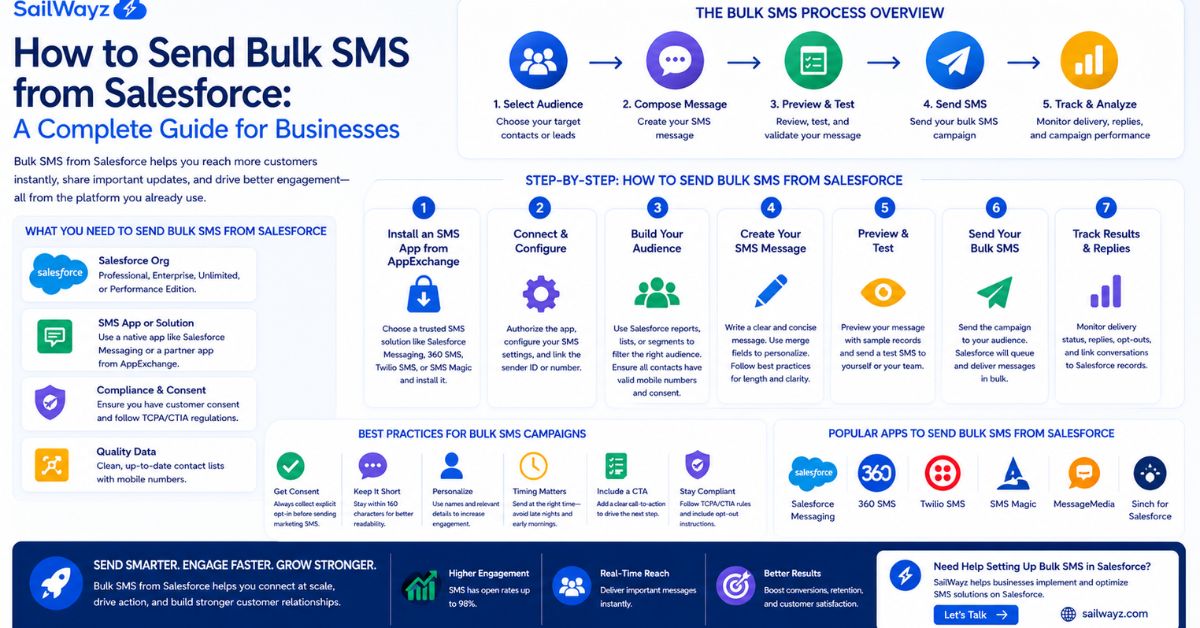
Email open rates sit between 20 and 30 percent on a good day. SMS open rates hover close to 98 percent. That gap tells you everything about why businesses using Salesforce are adding bulk texting to how they communicate with customers.
The challenge is that Salesforce does not make bulk SMS easy out of the box. The platform does not include mass texting in its standard Sales Cloud or Service Cloud plans. So if your team has ever tried to reach hundreds of leads at once and hit a wall, this guide is for you.
Here is exactly what bulk SMS from Salesforce looks like in practice, how to set it up, and what you need to stay on the right side of the law before you hit send.
Bulk SMS from Salesforce means sending a single text message to a large group of contacts, leads, campaign members, or accounts simultaneously, directly from inside your CRM, using the data you already have.
The difference between bulk texting and a regular blast is what Salesforce makes possible. Because your customer data lives in the CRM, you can filter your recipients precisely, personalize each message with details pulled from their record, and have every reply logged automatically to the right contact timeline. No data exports. No switching between tools. No hunting for conversation history later.
Let’s break it down into how you actually get there.
Salesforce offers three paths for bulk SMS. Each suits different team sizes and use cases.
AppExchange SMS Apps are the most common choice for sales and marketing teams. Apps like 360 SMS, Mogli SMS, Message Blink, and Salesmsg install directly into your Salesforce org. They add a bulk send button to your list views, campaigns, and reports without requiring Marketing Cloud or complex configuration. This is the fastest route to bulk texting for most businesses.
Salesforce Marketing Cloud MobileConnect is the right fit if you already use Marketing Cloud for email campaigns and want to add SMS into structured journeys through Journey Builder. It supports large-scale sends, automated sequences, and Einstein-driven send-time optimization. The trade-off is a higher cost and a more involved setup.
Salesforce Digital Engagement is a Service Cloud add-on designed primarily for one-to-one support conversations, not bulk campaigns. It works for reactive messaging but is not built for mass outreach.
For most businesses, an AppExchange app installed into Sales Cloud or Service Cloud is the practical starting point.
Before sending a single message, you need to register your business with the carrier network. In the United States, this means completing A2P 10DLC (Application-to-Person 10-Digit Long Code) registration through the Campaign Registry. Since carrier enforcement began in February 2025, unregistered business texts are filtered or blocked outright, meaning your messages never reach anyone.
Registration requires your business verification documents, a description of your campaign’s purpose, and a sample of your message content. Brand registration typically takes one to three business days, and campaign registration takes two to seven days. Plan for this before you launch.
Most AppExchange SMS apps and Marketing Cloud include support for 10DLC registration as part of their setup process.
Salesforce gives you three main ways to build your recipient list, and each serves a different purpose.
List Views let you filter any standard or custom object, Contacts, Leads, Accounts, Opportunities, or Cases, by any field. If you want to reach every lead assigned to a specific region whose status is “Open,” you build that filter in the list view and send directly from it. Most AppExchange apps add a bulk send button to the list view interface, making this the quickest method for ad hoc outreach.
Campaigns work well for structured marketing programs where you want to track members, monitor engagement, and reuse the audience across multiple sends. You build or select a campaign, add your contacts or leads as members, and send from the campaign object. This approach also gives you cleaner reporting on who responded.
Reports are the most flexible option for large or complex segments. If your audience needs to be based on a combination of conditions across multiple objects, say, all accounts in a specific industry whose last activity date is more than 60 days ago, a Salesforce report can pull that list precisely. AppExchange apps that support report-based sending let you select that report and message the results without exporting a single row of data.
This is where the CRM data pays off. Instead of writing a generic message that feels like a mass text, use merge fields to pull specific details from each recipient’s record into the message body.
A message like “Hi!” FirstName}, your renewal date is {!Contract_End_Date__c}. “Reply YES to confirm or call us to discuss” reads as a personal message to the recipient, even when it goes to thousands of people at once. Merge fields can reference any field on the object — name, company, product, appointment time, account manager, or any custom field your team has built.
Keep messages clear and short. One hundred and sixty characters fit a single SMS segment. Going over means your message splits across multiple segments, which affects readability and cost. Write one clear call to action and leave space for the recipient to respond.
Most AppExchange apps and Marketing Cloud let you send immediately or schedule delivery for a specific date and time. Scheduling matters more than it sounds. Messages sent outside business hours can irritate recipients, increase opt-outs, and, in some jurisdictions, raise compliance questions. If your audience spans time zones, use a tool that schedules by the recipient’s local time.
Once you send, every message logs automatically to the activity timeline on each recipient’s record. Your team can see exactly what was sent, when, and whether the recipient replied without leaving Salesforce.
Manual sends are useful for one-off campaigns. Automation is where bulk SMS from Salesforce becomes a genuine business tool.
Salesforce Flow Builder lets you trigger text messages based on any event in the CRM without writing code. Here are practical examples of what that looks like:
One sales team that added automated SMS follow-ups to their pre-call process reported a 20% reduction in demo no-shows. That result comes from reaching people through the channel they actually read before they forget about a scheduled call.
Flow-based automation works by connecting your SMS app’s native actions to standard Salesforce triggers. Set the trigger condition, add the SMS action, configure your message with merge fields, and activate. The flow runs without manual intervention from that point on.
Sales teams use bulk SMS to follow up on stalled deals, re-engage cold leads, confirm appointments, and send personalized outreach at scale without each rep having to type individual messages.
Marketing teams run promotional campaigns, event invitations, flash sale notifications, and multi-step nurture sequences triggered by contact behavior in the CRM.
Service teams send case update alerts, satisfaction surveys, appointment reminders, and proactive issue notifications before customers need to call in.
Operations teams use bulk SMS for internal alerts, contract renewal prompts, and time-sensitive notices that need to reach a defined group fast.
Bulk SMS without a solid compliance setup is a legal risk. The Telephone Consumer Protection Act (TCPA) in the United States sets fines at $500 to $1,500 per non-compliant message. TCPA lawsuits increased by 44% between January and April 2025 compared to the prior year, and class actions can stack those fines across thousands of messages.
Here is what you need in place:
Written consent before any promotional send. Email opt-ins do not cover SMS. Recipients need to consent specifically to receiving texts from your business, and you need a timestamped record of when and how they did so. A web form checkbox with clear disclosure language is the standard method.
Double opt-in for marketing campaigns. After someone enters their number, send a confirmation text asking them to reply YES before adding them to your send list. This protects you and keeps your list clean.
Opt-out handling in every message. Every bulk text must include a way to unsubscribe, typically by replying STOP. Since April 2025, businesses must process opt-out requests within 10 business days regardless of how the request is submitted. Most SMS apps log opt-outs automatically and suppress future messages to those contacts.
10DLC registration. Without it, your texts will be blocked by carriers regardless of how well you have set up everything else.
For UK and EU contacts, GDPR applies. You need a lawful basis for messaging European contacts and must make withdrawing consent as straightforward as giving it.
Setting up the technology is one part of the job. Getting it connected to your actual sales process, built to stay compliant, and configured so your team actually uses it takes someone who knows both Salesforce and how businesses work in practice.
Sailwayz is a registered Salesforce consulting partner with more than 50 combined Salesforce certifications across Sales Cloud, Service Cloud, Marketing Cloud, and more. The team works with businesses in finance, retail, law, manufacturing, government, and connectivity to build Salesforce environments that go beyond storing data and actually support how teams communicate with customers.
If you are looking to add bulk SMS to your Salesforce org or if you already have something set up and it is not working the way you expected, Sailwayz can help you choose the right approach, configure your automation, and make sure your consent tracking holds up. Book a free consultation to see where your current setup stands.
Before you go live with bulk SMS from Salesforce, run through this list:
Can Salesforce send bulk SMS natively without any add-ons?
No. Salesforce Sales Cloud and Service Cloud do not include bulk SMS in their base plans. To send mass text messages, you need either a third-party AppExchange app, the Digital Engagement add-on for Service Cloud, or Salesforce Marketing Cloud with Mobile Connect. For most sales and marketing teams, an AppExchange app is the most accessible and cost-effective option.
How do I personalize bulk SMS messages sent from Salesforce?
Use merge fields in your message template. These are placeholders like {! FirstName} or {!Account. Name that your SMS app automatically replaces with the actual data from each recipient’s Salesforce record before sending it. The result is that every contact receives a message that reads as if it were written specifically for them, even when you are sending to thousands at once.
What is 10DLC, and do I need it to send bulk SMS from Salesforce?
10DLC stands for 10-Digit Long Code. It is the registration system that US carriers use to verify that businesses are sending legitimate, non-spam messages. Since February 2025, carrier enforcement means unregistered business texts are blocked before they reach recipients. If you are sending any volume of business SMS in the United States, 10DLC registration is not optional.
How does Salesforce Flow connect with bulk SMS?
Most AppExchange SMS apps provide native Flow actions that you can add to any Salesforce Flow. You set a trigger condition, a record being created, a field changing, or a scheduled time, and then add the SMS send action and configure your message with merge fields. The flow runs automatically and logs each message to the relevant Salesforce record, so your team always has the full communication history in one place.
What happens when a contact replies STOP to a bulk SMS sent from Salesforce?
A compliant SMS app will automatically update the contact’s opt-out status in Salesforce and suppress them from future sends. This happens without any manual action from your team. Under TCPA rules in effect since April 2025, opt-out requests must be processed within 10 business days regardless of how the contact submits them, including by text, email, or phone.

Joshua Eze is the Founder & Salesforce Architect at Sailwayz, a certified Salesforce Consulting Partner based in the UK. With over 6 years of experience leading CRM transformations, he is a certified Application & System Architect passionate about using technology to simplify business processes. Joshua helps companies unlock the full potential of Salesforce with strategic, scalable, and secure solutions.
